Features

One app for the whole team: chat, meetings, projects and files, with secure remote access one click away.

The team workspace

Create your company, invite your people, and work in one place. Collaborate → Connect → Control.

💬

Team Chat

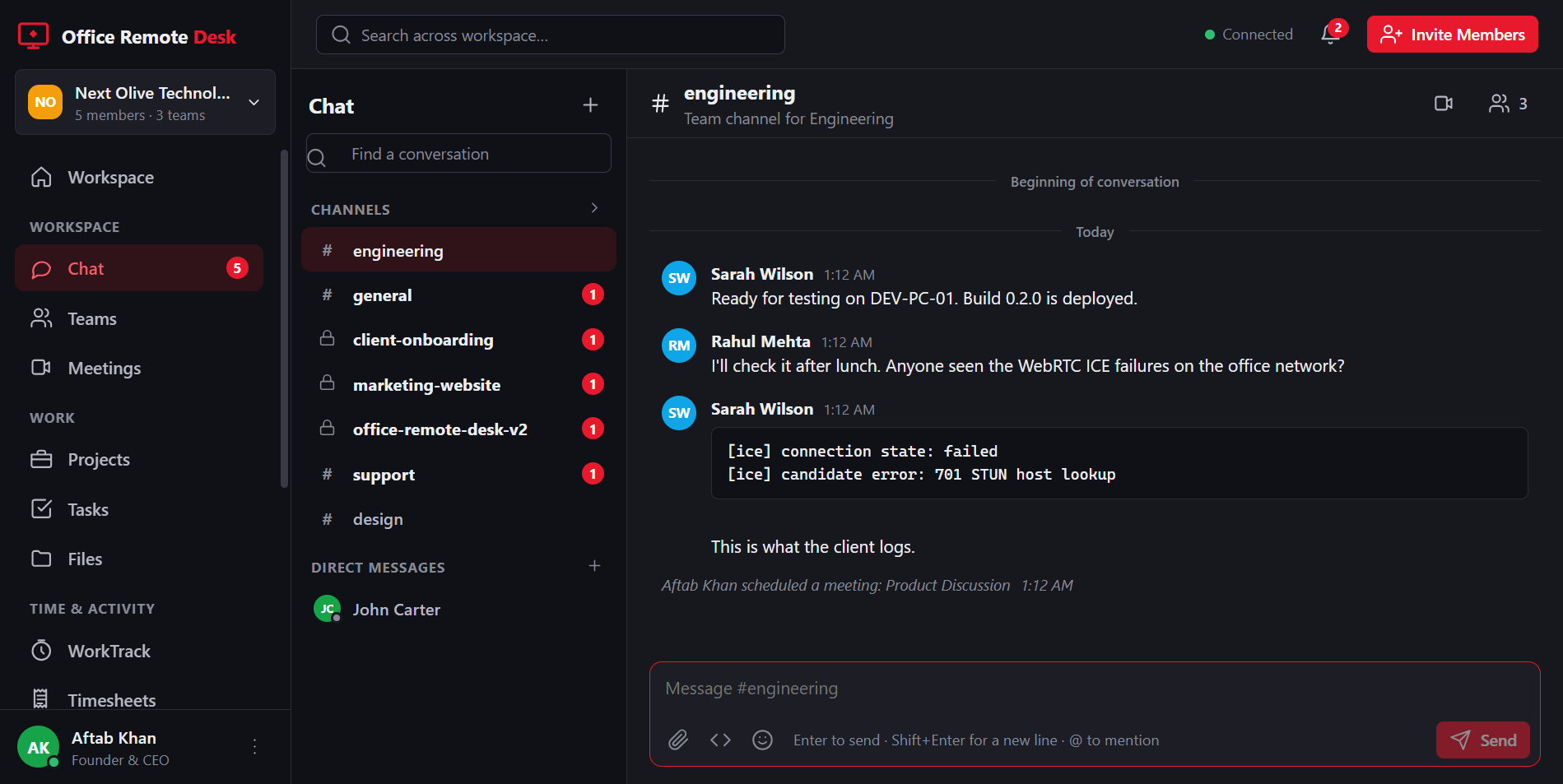
Channels, direct messages and group chats with threads, reactions, @mentions, code snippets, file sharing and search.

🎥

Meetings

Video, audio and screen sharing, raise hand, participant list. Share your screen, then let a teammate request control of it.

🖥

Team Devices

See every member's devices and whether they are online. Share a device with a team at view, control or unattended level.

📋

Projects & Tasks

Boards and lists with assignees, due dates, priorities and comments. A task can carry a device: "Connect to DEV-PC-01" sits right on the card.

📁

Files

Folders for the company and per project. Upload, share to chat, preview and download, with a storage quota per workspace.

🔒

Sessions in context

Start a remote session from a conversation or a task. The session is logged there: who connected, to which PC, for how long.
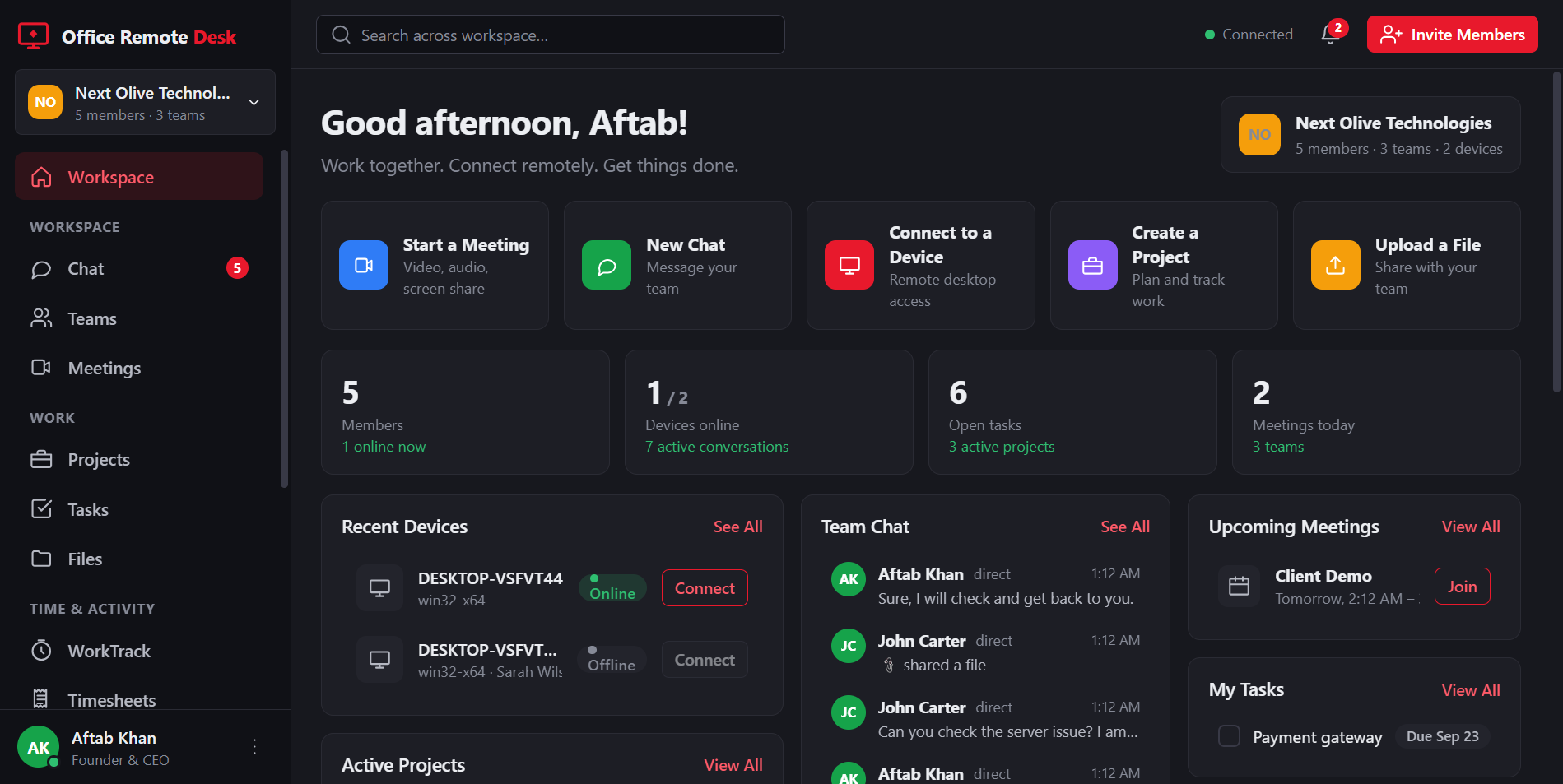
The workspace dashboard: members online, devices, open tasks, recent chat and upcoming meetings.

Your company at a glance.

Team chat with channels, threads, reactions, mentions and file attachments.

Channels, threads and direct messages.
WorkTrack — time, timesheets and billing

A work timer booked to a client and a project. The week becomes a timesheet, the approved timesheet becomes an invoice. Nothing is retyped along the way.

Work timer

Start work against a client, project and task. Pause for breaks; the timer pauses itself when the machine sleeps or locks.

📜

Work diary

A timeline of the day: what was started, periodic screenshots, idle stretches and breaks — with an activity percentage measured from real input.

📊

Team dashboard

Admins see who is working, who is on a break and how the hours are landing, by team, member, project or client.

🧾

Timesheets

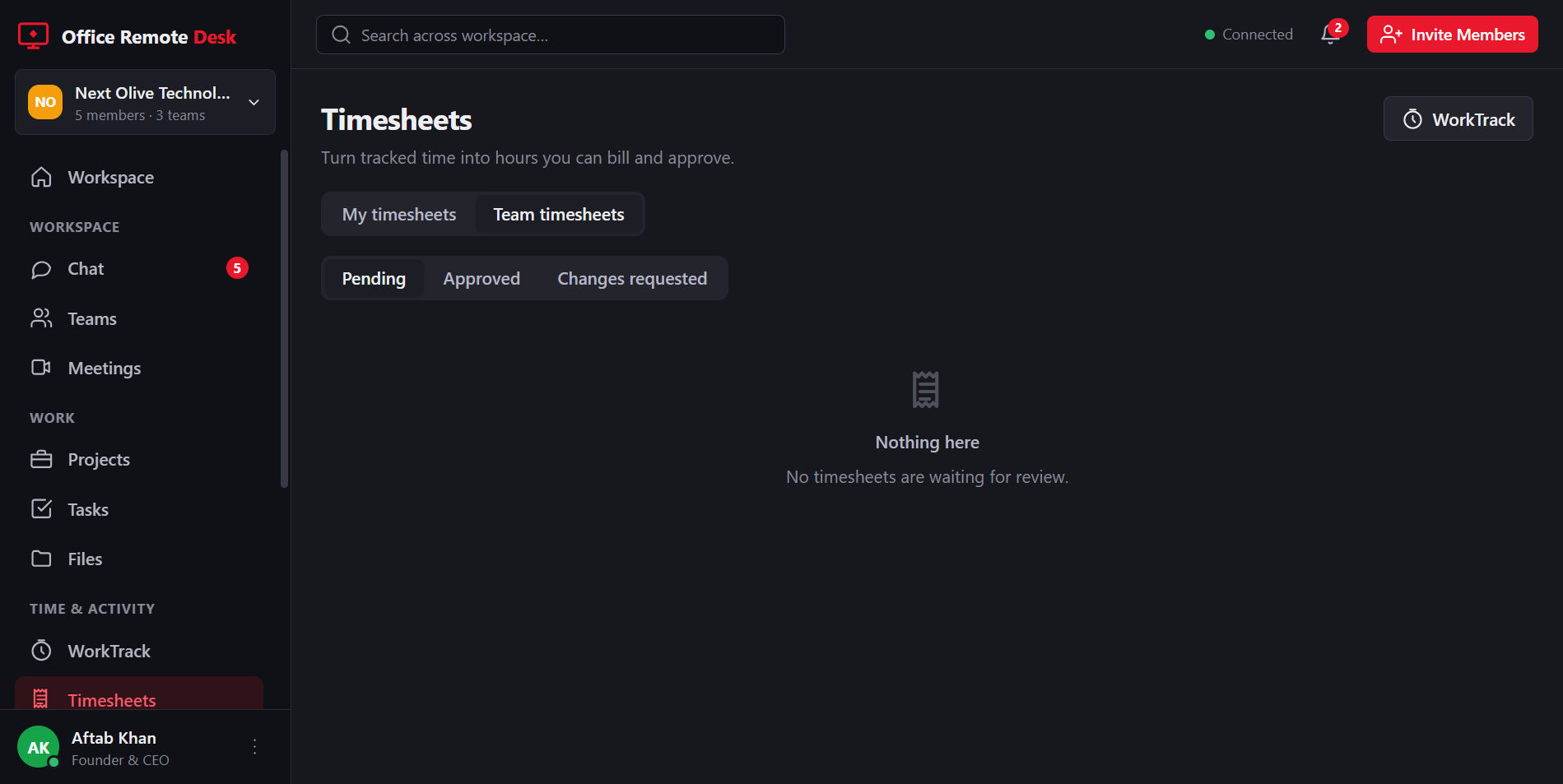
Members submit a week; an admin approves it or asks for changes. Export to CSV for payroll or the client's own system.

💰

Client billing

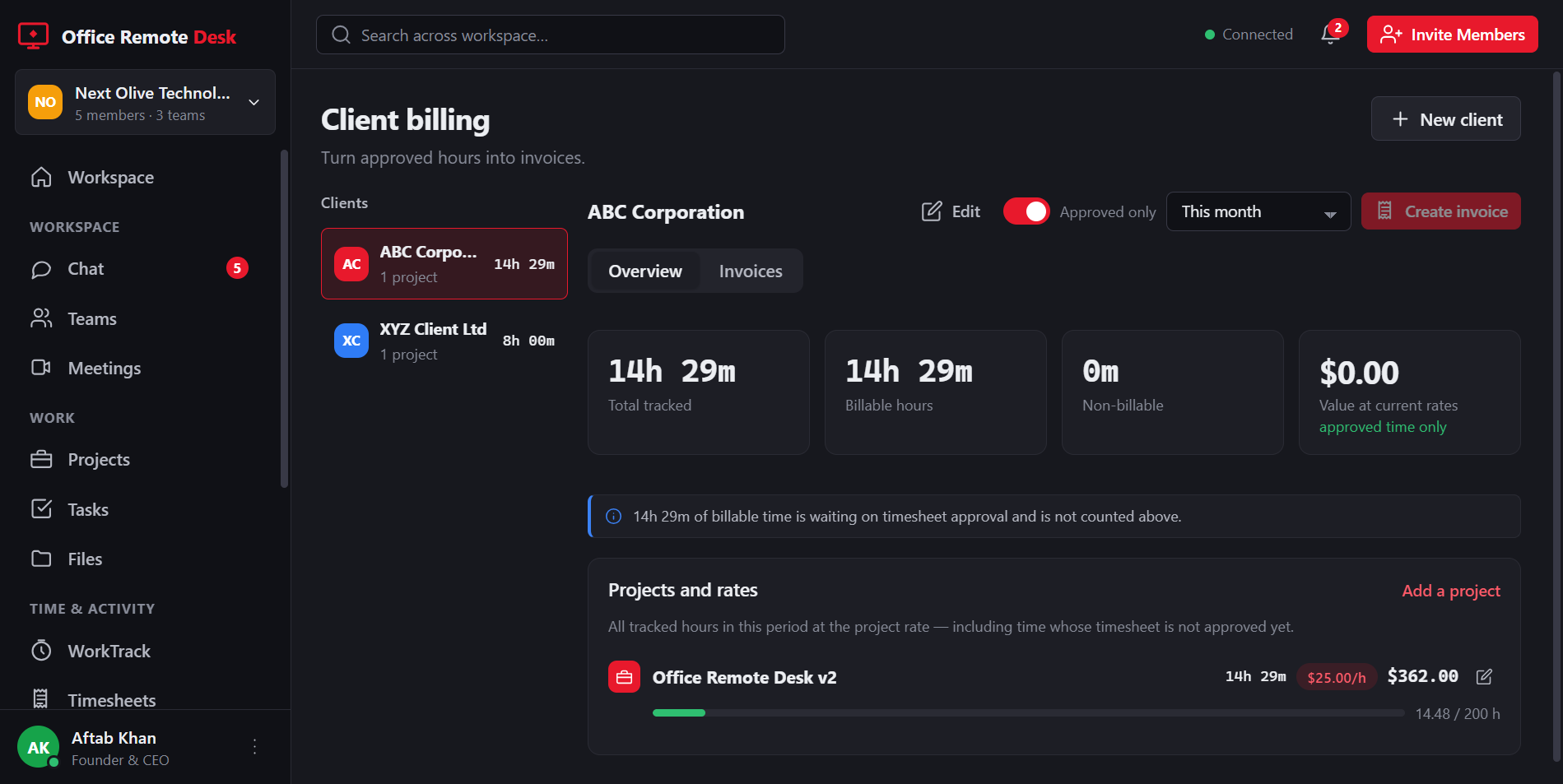
Hourly rates and budgets per project. Turn approved hours into an invoice you can save as a PDF, without a spreadsheet in the middle.

🛡

Built to be fair

Counts, never content. Members own their timer, see their own diary and can delete their own screenshots. Nothing is recorded when the timer is off.

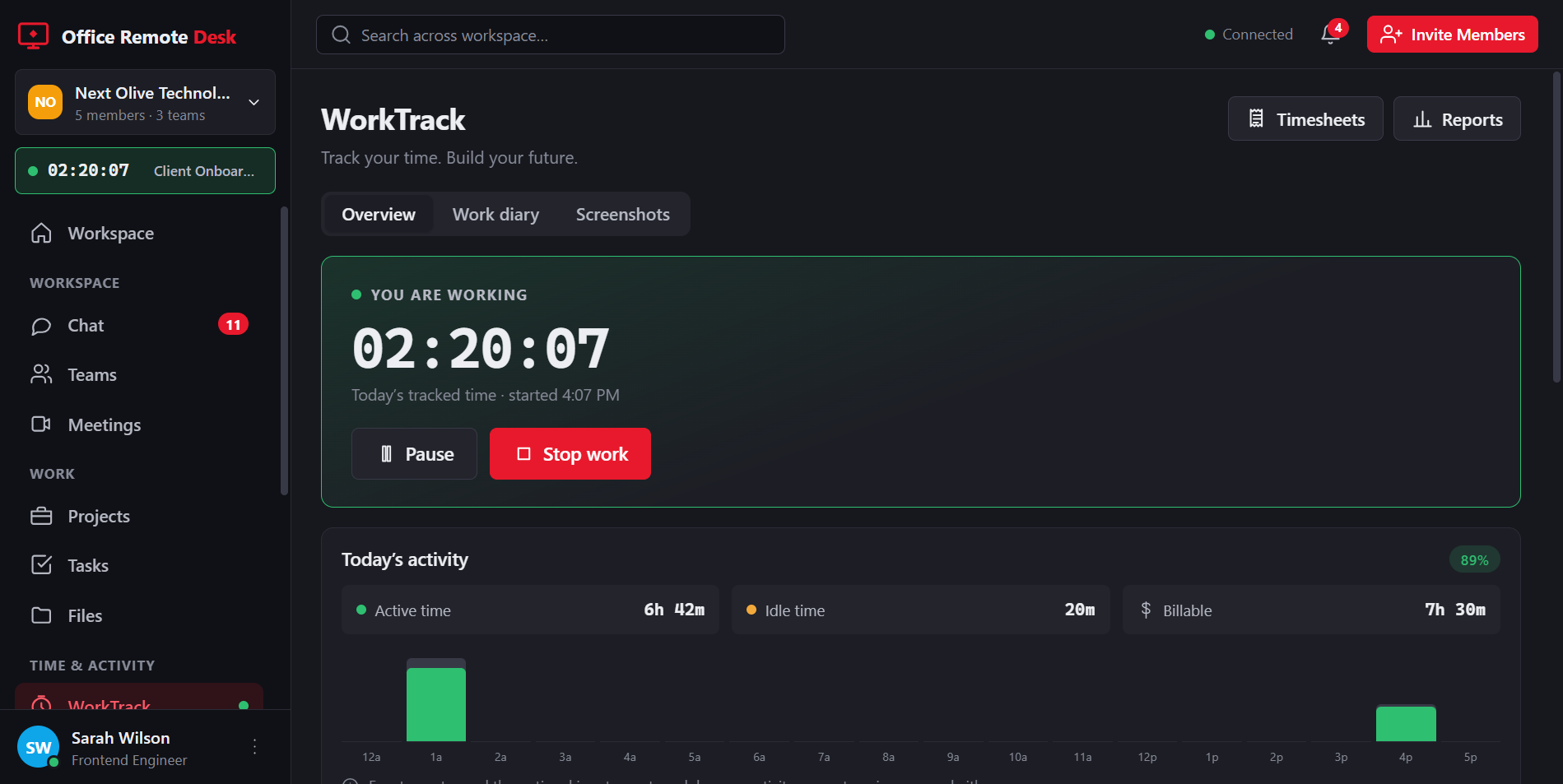
The WorkTrack timer running, with today's active time, idle time, billable hours and activity by hour.

Start work against a client and a project. Everything downstream follows from this one action.

Team timesheets awaiting review, with tracked and billable hours per member and approve or request-changes actions.

Timesheets, submitted and approved in the app.

Client billing: tracked and billable hours for a client, project rates and budgets, and the value at those rates.

Approved hours become an invoice.

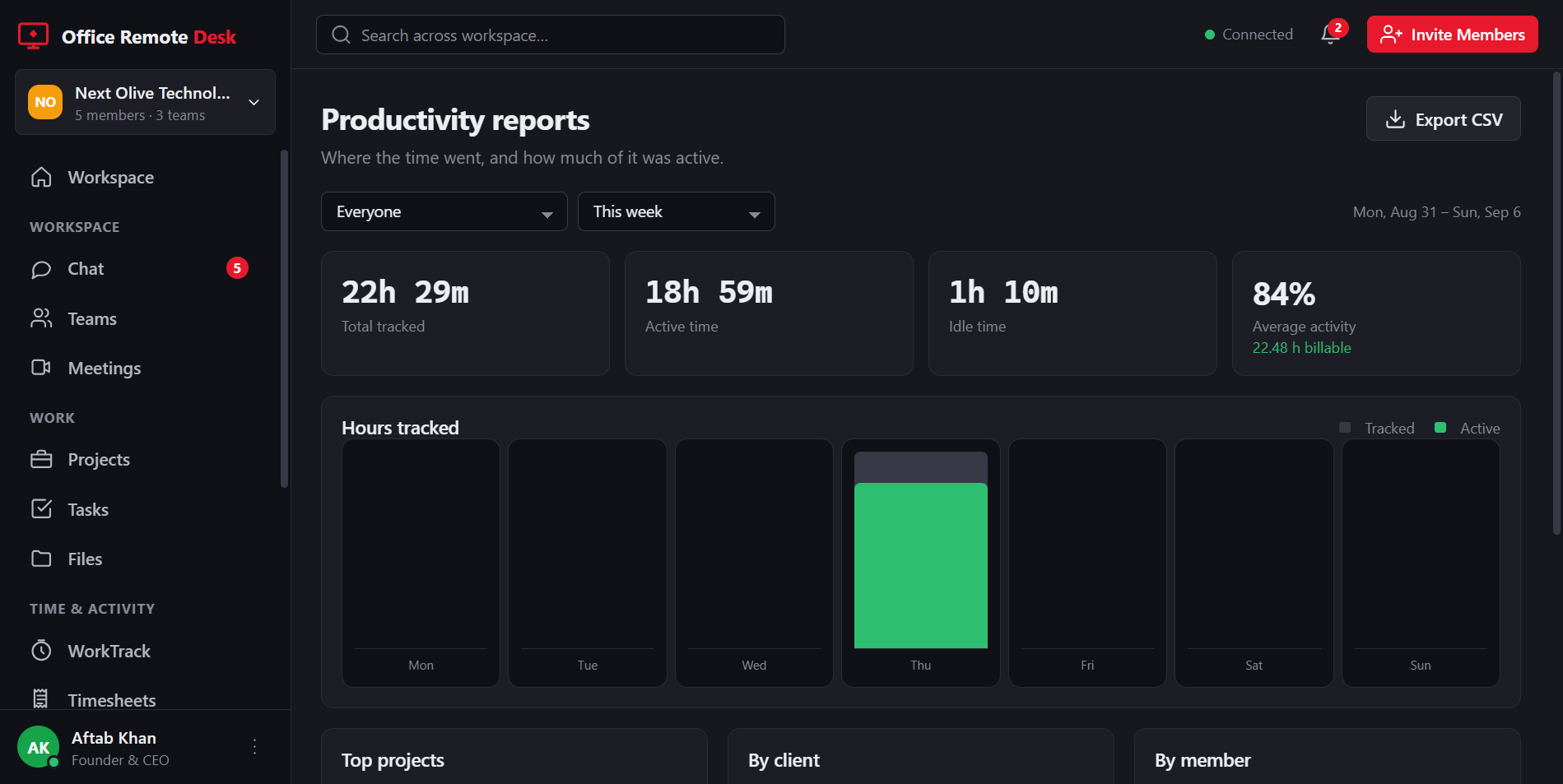
Productivity reports: total tracked, active and idle time, hours per day, and breakdowns by project, client and member.

Where the time went, and how much of it was active.

What WorkTrack records — and what it never does

Time tracking has a bad name for good reasons, so here is the whole of it.

While a member has their own timer running: how long it ran, how much of each minute had any input, a count of keyboard and mouse events, and periodic screenshots of the primary display.

Never, and not switchable on: which keys were pressed or anything typed; the contents of any window beyond what a screenshot plainly shows; anything at all while the timer is stopped or paused.

There is no keylogger to enable — the app has no code that captures typed content and the database has no column that could hold it. Screenshots can be blurred, switched off per project or per person, and age out on a retention window you set. The whole thing is open source, so you can check rather than trust. Employee monitoring is regulated in many places: check your local law before turning it on.

Remote access

The original Office Remote Desk core, unchanged: fast, direct and encrypted.

🔒

End-to-End Encryption

Every session is protected with DTLS-SRTP and keys negotiated per session by the two devices themselves. No one in the middle — including our server — can read your screen or your keystrokes.

Low Latency Streaming

Hardware-accelerated capture and adaptive bitrate keep the remote desktop smooth even on modest connections.

📡

Peer-to-Peer Connections

Office Remote Desk connects the two devices directly whenever possible, with TURN relay as an automatic fallback.

💻

Unattended Access

Install as a service and reach your machines any time - no one has to sit in front of the remote computer.

📁

File Transfer

Copy files in both directions during a session with a simple drag-and-drop panel.

🖥

Multi-Monitor Support

Switch between remote displays or view them side by side, scaled to fit your window.

📋

Address Book

Save the machines you use most with friendly names, so you never type an ID twice.

🕔

Session History

See who connected, when, and for how long - useful for support teams and audits.

📱

Cross-Platform

Windows, macOS, Linux and Android clients all speak the same protocol; an iOS viewer follows at launch.

How a session works

Three steps, no router configuration, no VPN.

1. Share your ID

Every device gets a 9-digit Office Remote Desk ID when the app starts. Send it to the person who should connect.

2. Enter it and connect

The other side types the ID (and a password if you set one) and presses Connect.

3. Work as if you were there

Keyboard, mouse, clipboard and files - all over one encrypted channel.

Ready to get started?

Download Office Remote Desk and connect your first device in under a minute.

⇩ Download Office Remote Desk